> ## Documentation Index
> Fetch the complete documentation index at: https://docs.inferless.com/llms.txt
> Use this file to discover all available pages before exploring further.
# My Volumes
Inferless provides NFS-like writable volumes that support simultaneous connections to various replicas. Similar to networked file-sharing systems that enable collective access to files across a network, these volumes in Inferless address multiple needs:
* Storing model parameters
* Archiving datasets similar to centralized storage
* Setting up a communal cache for collaborative tasks, akin to a shared cache over a network.
## Method A: Create a Volume using Inferless Platform
Here is how you can create a volume `Go to the Volumes` section in your console
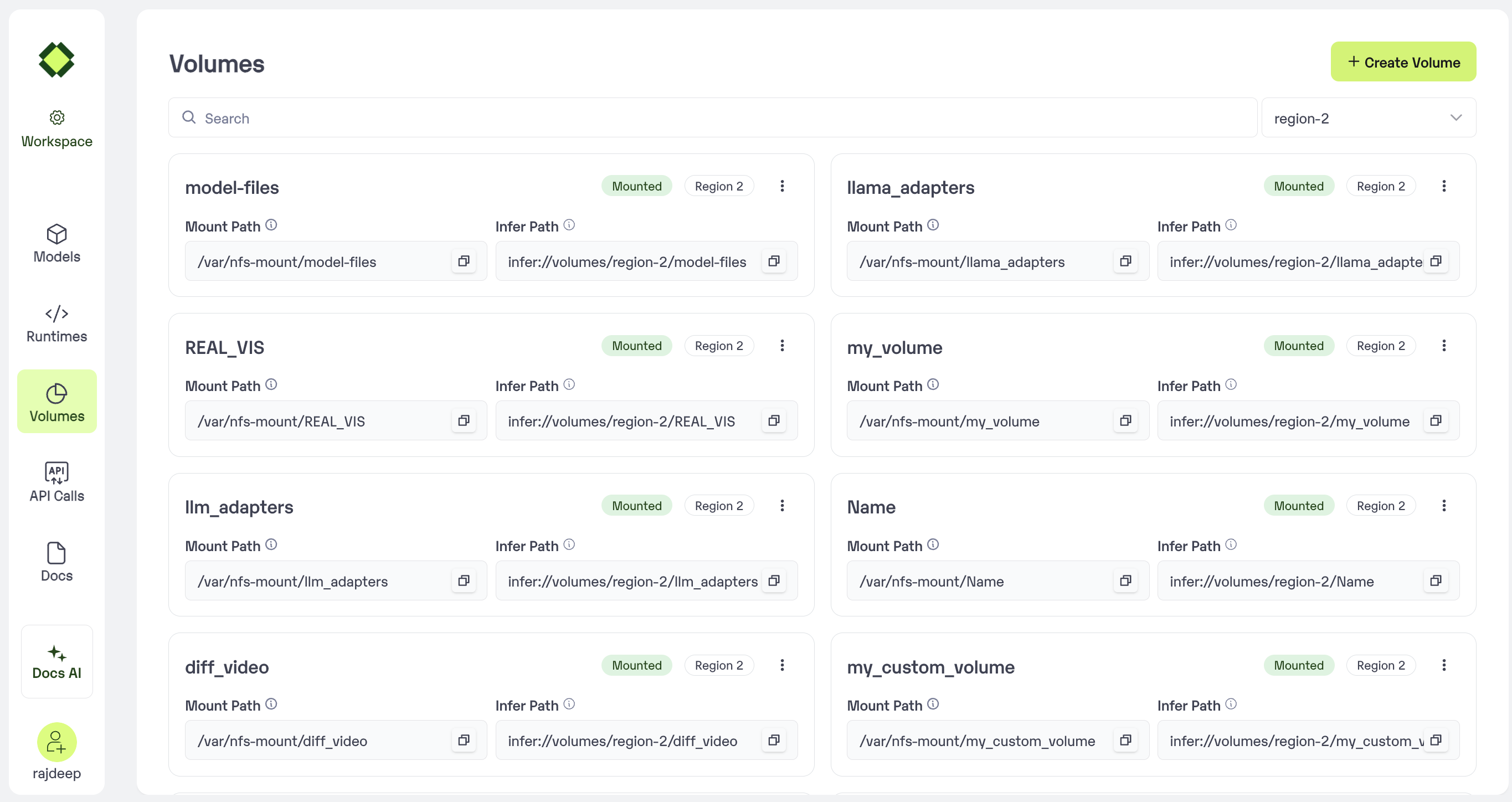 Volumes
#### Step 1
Click on the Create Volume button
Volumes
#### Step 1
Click on the Create Volume button
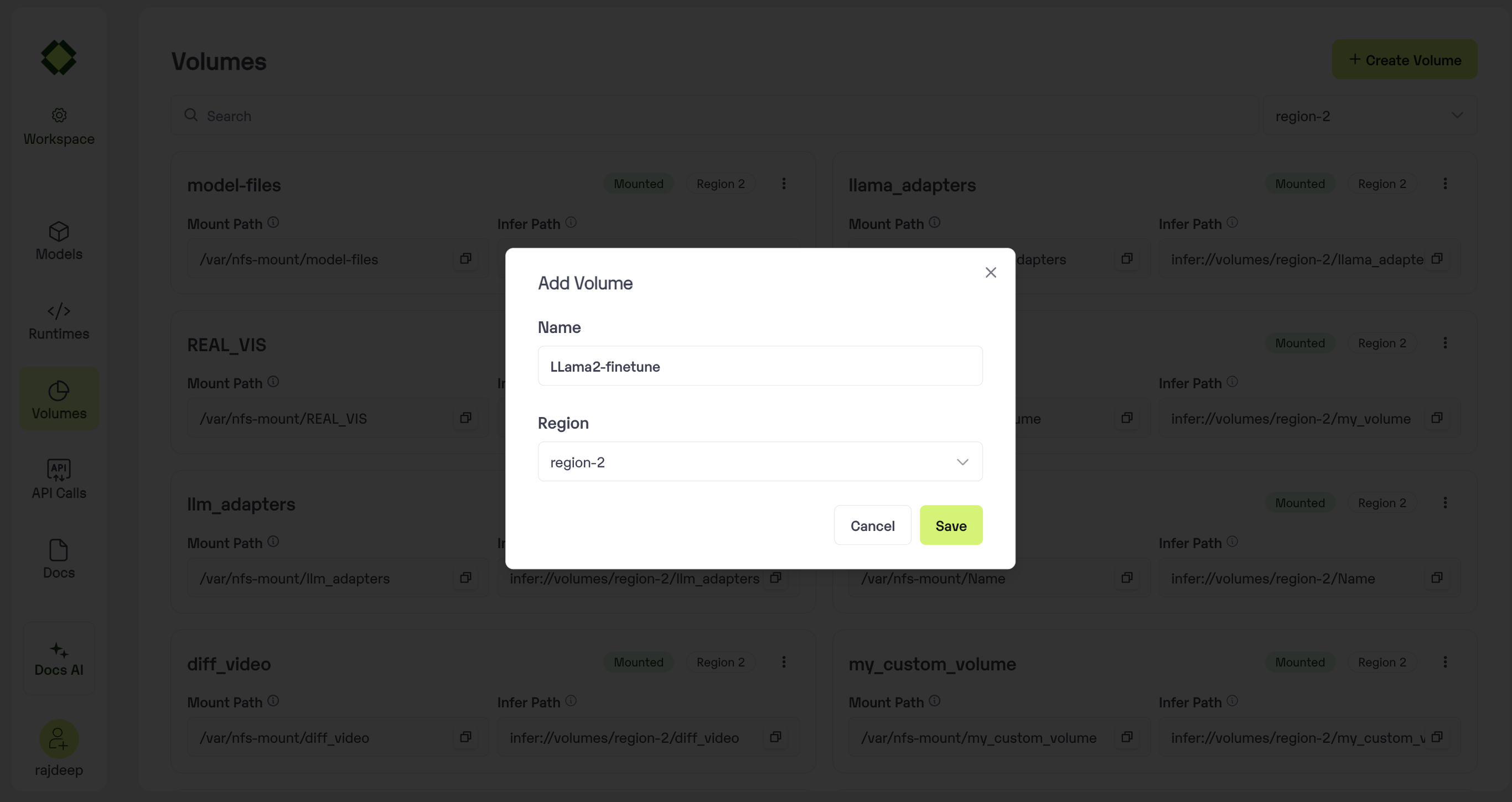 #### Step 2
After this Volume is created and ready copy the `Mount Path`
#### Step 2
After this Volume is created and ready copy the `Mount Path`
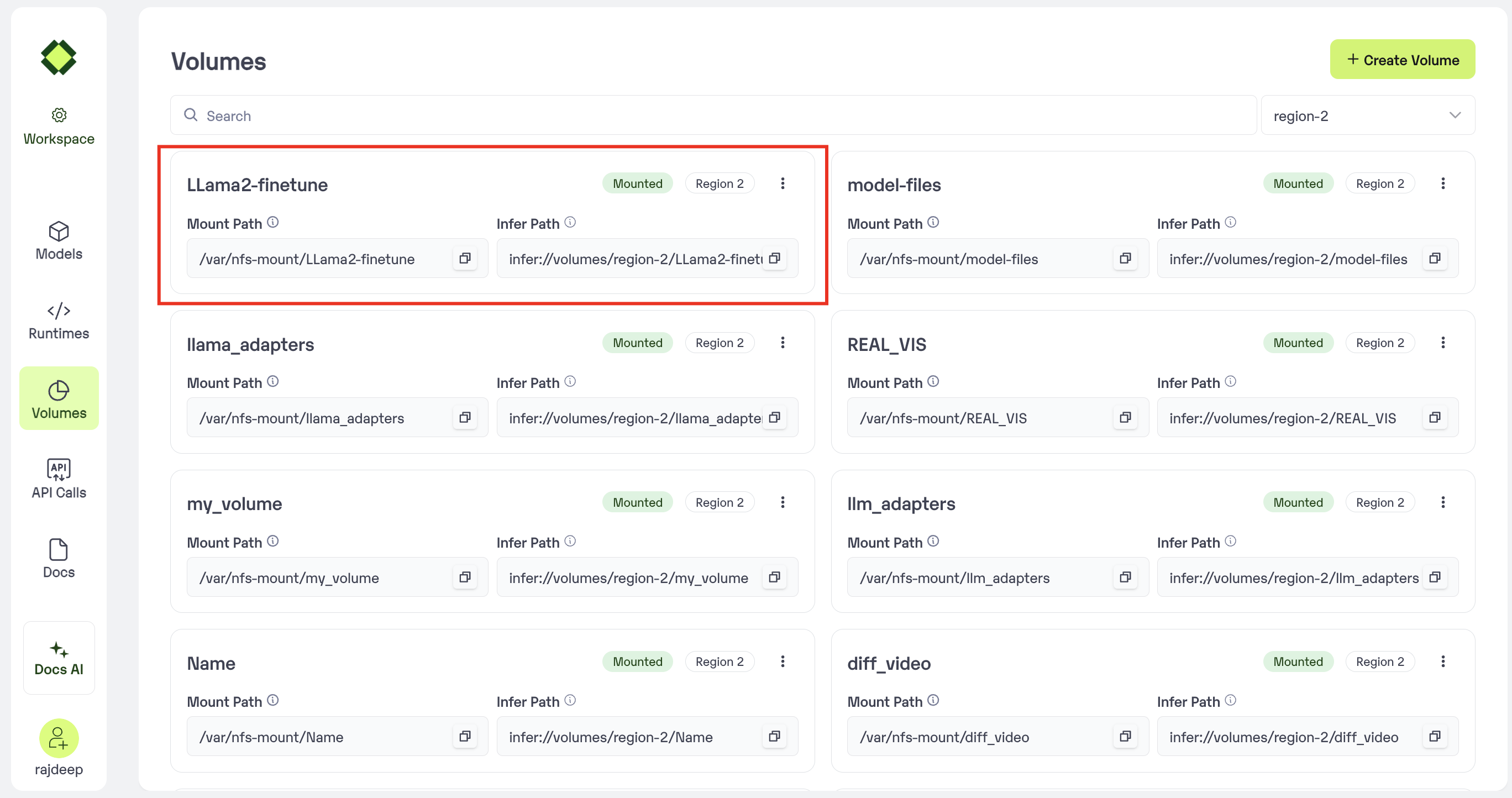 #### Step 3
Use the mount path on your app.py code as shown below :
#### Step 3
Use the mount path on your app.py code as shown below :
 #### Step 4
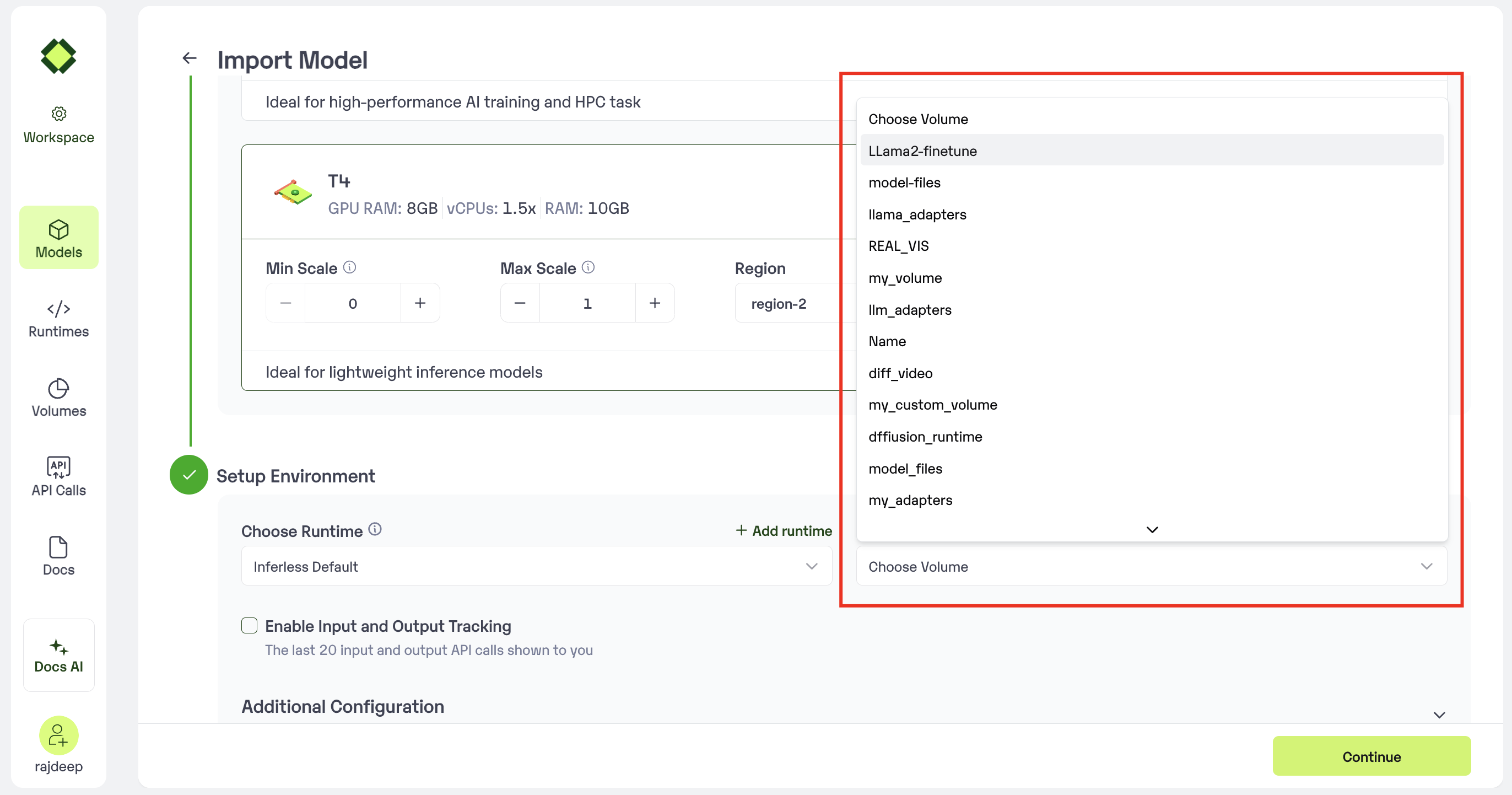
In the model import step, select the Mount Volume to attach
#### Step 4
In the model import step, select the Mount Volume to attach
 ### View Volumes
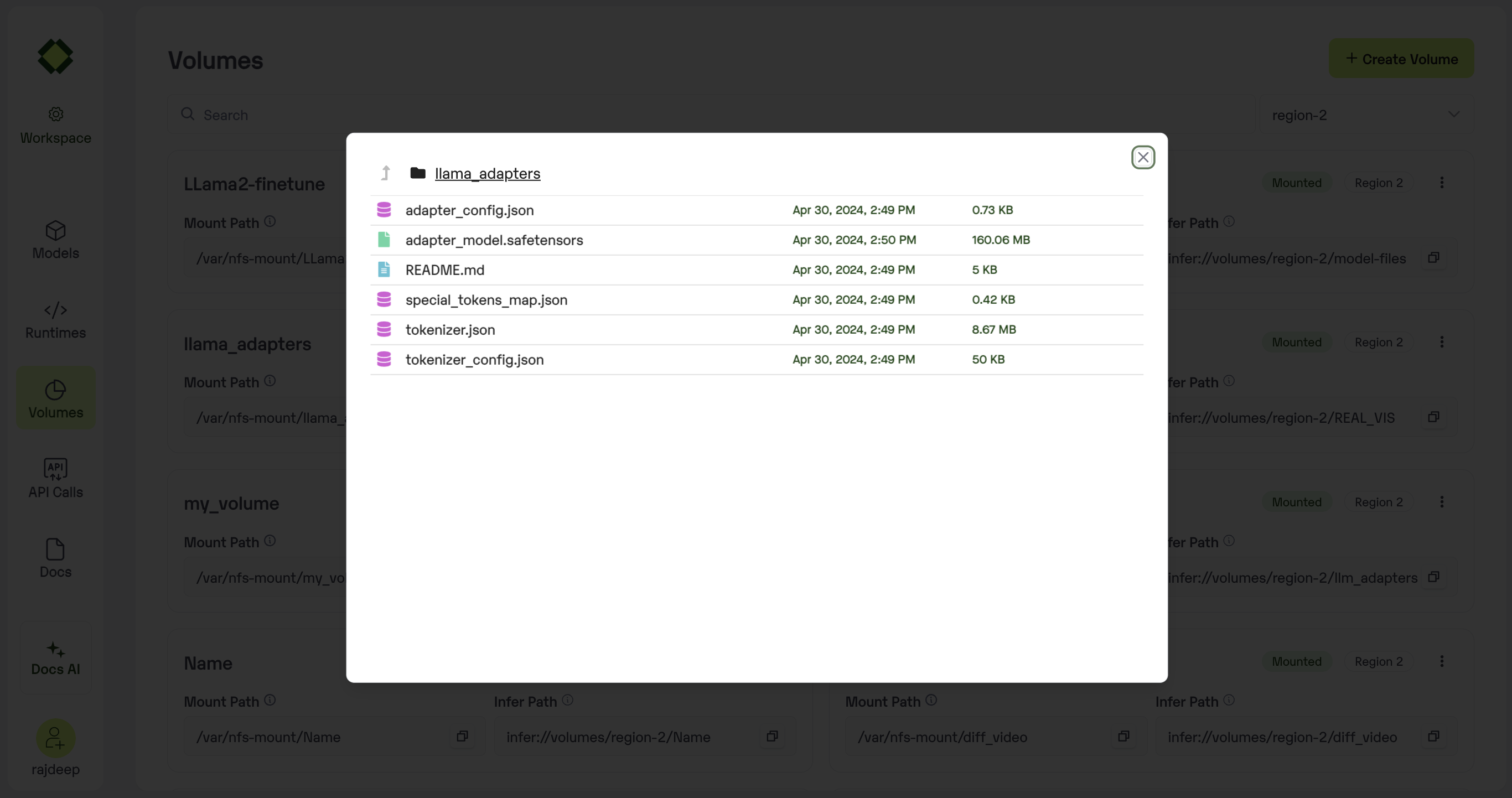
You can also browse the files in your volume by clicking on the Volume Card
### View Volumes
You can also browse the files in your volume by clicking on the Volume Card
 ### Delete Volumes
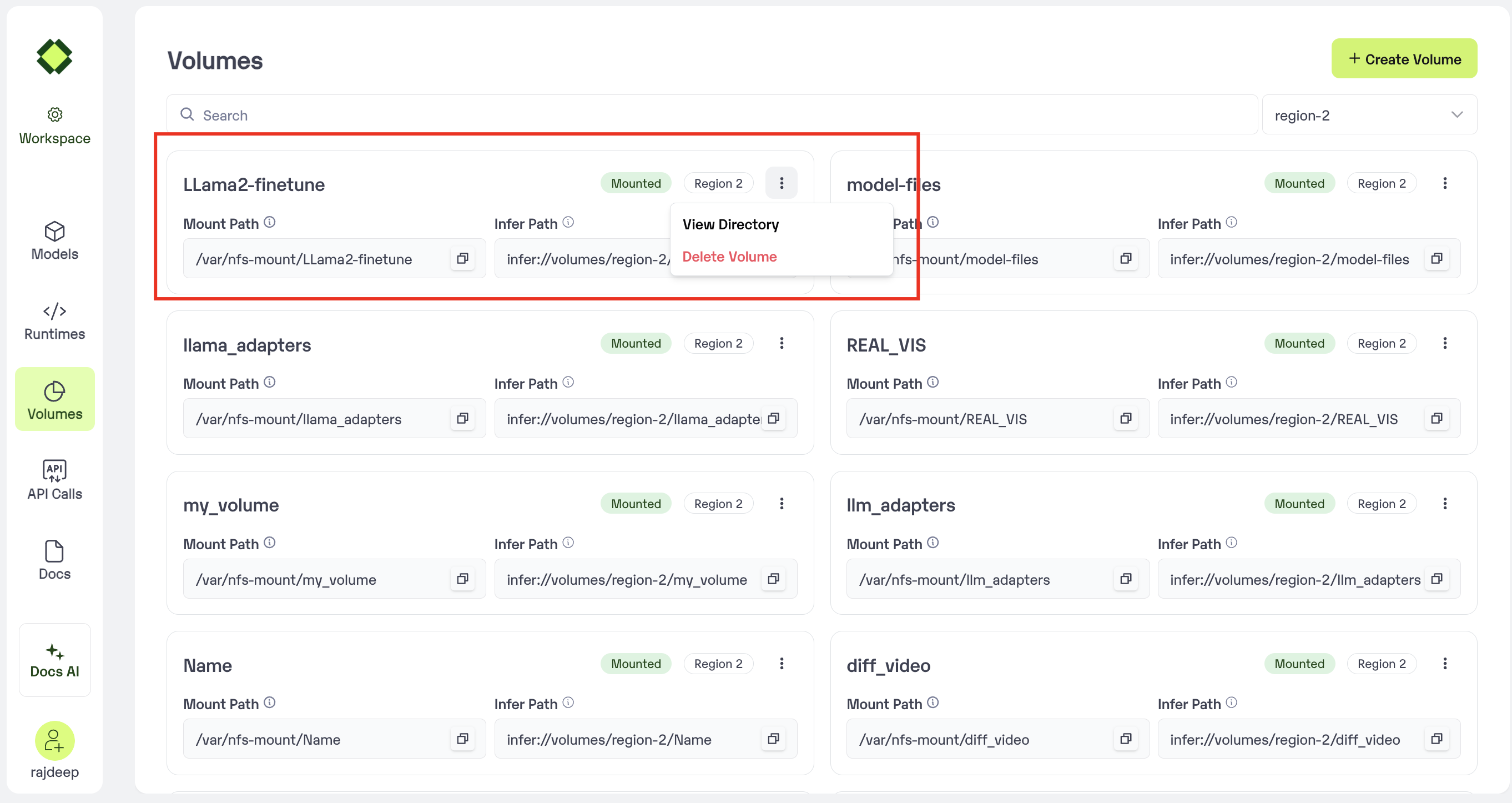
To delete volumes make sure it's not attached to any Deployment, You can delete it form the My Volumes page
### Delete Volumes
To delete volumes make sure it's not attached to any Deployment, You can delete it form the My Volumes page
 ## Method B: Create a volume using Inferless CLI
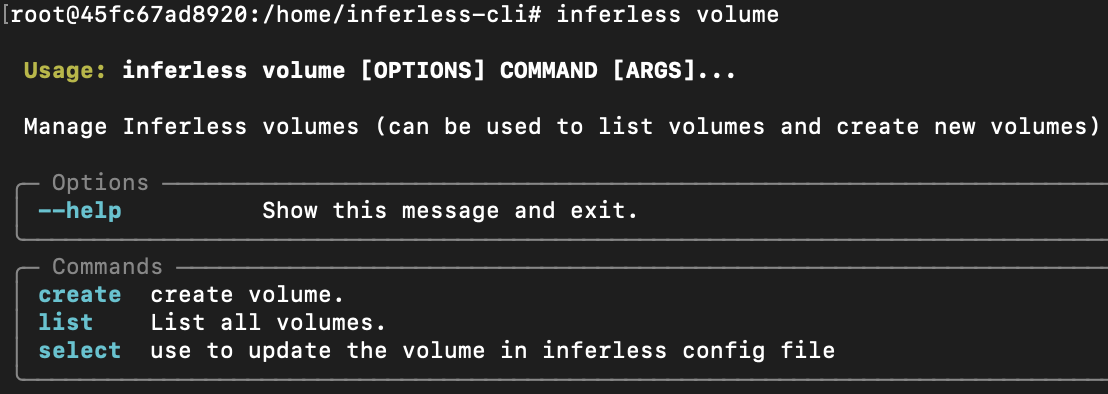
Use this command `inferless volume` to see all the functions available for volume.
## Method B: Create a volume using Inferless CLI
Use this command `inferless volume` to see all the functions available for volume.
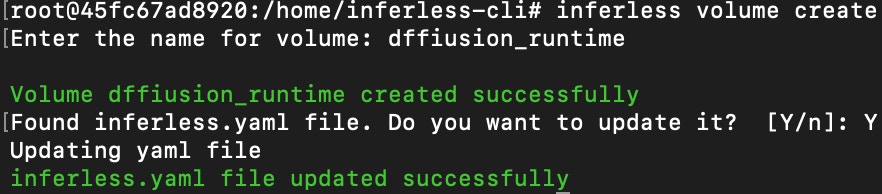
 ### `inferless volume create`
This command is used to create a volume. Run this command and enter the name of your volume. Once the volume is created you can follow the process and update your volume directly to the inference configuration file(`inferenece.yaml`)
### `inferless volume create`
This command is used to create a volume. Run this command and enter the name of your volume. Once the volume is created you can follow the process and update your volume directly to the inference configuration file(`inferenece.yaml`)
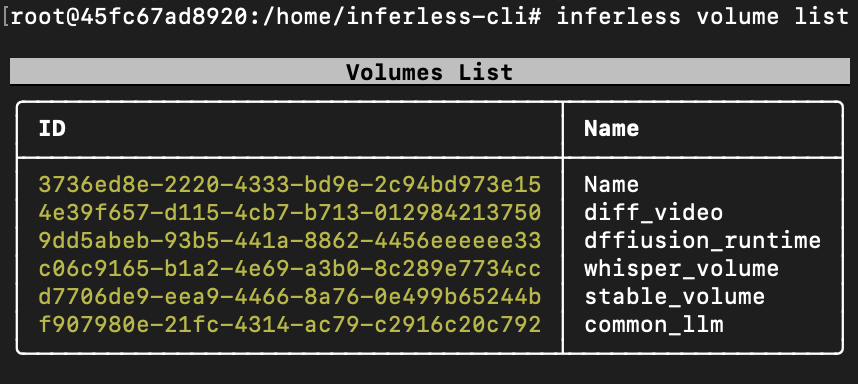
 ### `inferless volume list`
This command allows you to list all the volumes present in your workspace. It will help you to get the `ID` of the volume, which is required when you run the `inferless volume select` command.
### `inferless volume list`
This command allows you to list all the volumes present in your workspace. It will help you to get the `ID` of the volume, which is required when you run the `inferless volume select` command.
 ### `inferless volume select --id`
This command allows you to use any volume that you have created using volume's `id`. Run the following command and update the `volume` directly on the inference configuration file(`inference.yaml`).
```
inferless volume select --id 4e39f657-d115-4cb7-b713-012984213750
```
### `inferless volume select --id`
This command allows you to use any volume that you have created using volume's `id`. Run the following command and update the `volume` directly on the inference configuration file(`inference.yaml`).
```
inferless volume select --id 4e39f657-d115-4cb7-b713-012984213750
```
