> ## Documentation Index
> Fetch the complete documentation index at: https://docs.inferless.com/llms.txt
> Use this file to discover all available pages before exploring further.
# Deploy Stable Video Diffusion using Inferless
> Stability AI released Stable Video Diffusion, a latent diffusion model for high-resolution video generation from text and images.
## Our Observations
We have deployed this model using A100 GPU and observed that the model took an average cold start time of `7.02 sec` and an average inference time of `34 sec` for generating a video of` 4 sec` with `6fps`
## Defining Dependencies
We are using the HuggingFace [Diffusers](https://github.com/huggingface/diffusers) library for the deployment. You can also use [this script](https://github.com/Stability-AI/generative-models/blob/main/scripts/sampling/simple%5Fvideo%5Fsample.py) for deployment provided by Stability AI.
## Constructing the GitHub/GitLab Template
Now quickly construct the GitHub/GitLab template, this process is mandatory and make sure you don't add any file named `model.py`
```
stable-video-diffusion/
├── app.py
├── inferless-runtime-config.yaml
├── inferless.yaml
└── input_schema.py
```
You can also add other files to this directory.
## Create the class for inference
In the [app.py](https://github.com/inferless/inferless_tutorials/blob/main/video_generation/Stable-Video/app.py) we will define the class and import all the required functions
1. `def initialize`: In this function, you will initialize your model and define any `variable` that you want to use during inference. We are using `torch.compile `which improves the latency but requires a large GPU(A10/A100). If you are using Nvidia T4 then remove those lines and use model CPU offloading to reduce memory usage.
2. `def infer`: This function gets called for every request that you send. Here you can define all the steps that are required for the inference. You can also pass custom values for inference, for example `fps_id` is fixed in the tutorial, you can pass it through `inputs` parameter.
3. `def finalize`: This function cleans up all the allocated memory.
```python theme={null}
import os
os.environ["HF_HUB_ENABLE_HF_TRANSFER"]='1'
from huggingface_hub import snapshot_download
import inferless
from io import BytesIO
import base64
import torch
from diffusers import StableVideoDiffusionPipeline
from diffusers.utils import load_image, export_to_video
app = inferless.Cls(gpu="A100")
class InferlessPythonModel:
@app.load
def initialize(self):
model_id = "stabilityai/stable-video-diffusion-img2vid"
snapshot_download(repo_id=model_id,allow_patterns=["*.safetensors"])
self.pipe = StableVideoDiffusionPipeline.from_pretrained(model_id, torch_dtype=torch.float16, variant="fp16")
# self.pipe.enable_model_cpu_offload()
self.pipe.to("cuda")
self.pipe.unet = torch.compile(self.pipe.unet, mode="reduce-overhead", fullgraph=True)
self.pipe.vae = torch.compile(self.pipe.vae, mode="reduce-overhead", fullgraph=True)
@app.infer
def infer(self,inputs):
image_url = inputs['image_url']
image = load_image(image_url)
image = image.resize((1024, 576))
generator = torch.manual_seed(42)
frames = self.pipe(image, decode_chunk_size=8, generator=generator).frames[0]
export_to_video(frames, "generated.mp4", fps=7)
with open("generated.mp4", "rb") as video_file:
video_binary_data = video_file.read()
video_bytes_io = BytesIO(video_binary_data)
base64_encoded_data = base64.b64encode(video_bytes_io.read())
base64_string = base64_encoded_data.decode("utf-8")
return {"generated_video": base64_string}
def finalize(self):
self.pipe = None
```
## Creating the Custom Runtime
This is a mandatory step where we allow the users to upload their own custom runtime through [inferless-runtime-config.yaml](https://github.com/inferless/inferless_tutorials/blob/main/video_generation/Stable-Video/inferless-runtime-config.yaml).
```
build:
cuda_version: "12.1.1"
python_packages:
- "diffusers==0.32.2"
- "opencv-python==4.9.0.80"
- "torch==2.6.0"
- "transformers==4.49.0"
- "accelerate==1.4.0"
- "inferless-cli==2.0.9"
- "hf-transfer==0.1.9"
- "huggingface-hub==0.27.1"
```
## Test your model with Remote Run
You can use the `inferless remote-run`([installation guide here](https://docs.inferless.com/model-import/cli-import#cli-import)) command to test your model or any custom Python script in a remote GPU environment directly from your local machine. Make sure that you use `Python3.10` for seamless experience.
### Step 1: Add the Decorators and local entry point
To enable **Remote Run**, simply do the following:
1. Import the `inferless` library and initialize `Cls(gpu="A100")`. The available GPU options are `T4`, `A10` and `A100`.
2. Decorated the `initialize` and `infer` functions with `@app.load` and `@app.infer` respectively.
3. Create the Local Entry Point by decorating a function (for example, `my_local_entry`) with `@inferless.local_entry_point`.
Within this function, instantiate your model class, convert any incoming parameters into a `RequestObjects` object, and invoke the model's `infer` method.
```python theme={null}
import os
os.environ["HF_HUB_ENABLE_HF_TRANSFER"]='1'
from huggingface_hub import snapshot_download
import inferless
from io import BytesIO
import base64
import torch
from diffusers import StableVideoDiffusionPipeline
from diffusers.utils import load_image, export_to_video
from pydantic import BaseModel, Field
from typing import Optional
@inferless.request
class RequestObjects(BaseModel):
image_url: str = Field(default="https://images.cnbctv18.com/wp-content/uploads/2022/08/ashneer-grover-3-Meme-1-1019x573.jpg")
@inferless.response
class ResponseObjects(BaseModel):
generated_video: str = Field(default='Test output')
app = inferless.Cls(gpu="A100")
class InferlessPythonModel:
@app.load
def initialize(self):
model_id = "stabilityai/stable-video-diffusion-img2vid"
snapshot_download(repo_id=model_id,allow_patterns=["*.safetensors"])
self.pipe = StableVideoDiffusionPipeline.from_pretrained(model_id, torch_dtype=torch.float16, variant="fp16")
# self.pipe.enable_model_cpu_offload()
self.pipe.to("cuda")
self.pipe.unet = torch.compile(self.pipe.unet, mode="reduce-overhead", fullgraph=True)
self.pipe.vae = torch.compile(self.pipe.vae, mode="reduce-overhead", fullgraph=True)
@app.infer
def infer(self, request: RequestObjects) -> ResponseObjects:
image = load_image(request.image_url)
image = image.resize((1024, 576))
generator = torch.manual_seed(42)
frames = self.pipe(image, decode_chunk_size=8, generator=generator).frames[0]
export_to_video(frames, "generated.mp4", fps=7)
with open("generated.mp4", "rb") as video_file:
video_binary_data = video_file.read()
video_bytes_io = BytesIO(video_binary_data)
base64_encoded_data = base64.b64encode(video_bytes_io.read())
base64_string = base64_encoded_data.decode("utf-8")
generateObject = ResponseObjects(generated_video = base64_string)
return generateObject
def finalize(self):
self.pipe = None
@inferless.local_entry_point
def my_local_entry(dynamic_params):
request_objects = RequestObjects(**dynamic_params)
model_instance = InferlessPythonModel()
return model_instance.infer(request_objects)
```
### Step 2: Run with Remote GPU
From your local terminal, navigate to the folder containing your `app.py` and your `inferless-runtime-config.yaml` and run:
```bash theme={null}
inferless remote-run app.py -c inferless-runtime-config.yaml --image_url "https://images.cnbctv18.com/wp-content/uploads/2022/08/ashneer-grover-3-Meme-1-1019x573.jpg"
```
You can pass the other input parameters in the same way as long as your code expects them in the `inputs` dictionary.
If you want to exclude certain files or directories from being uploaded, use the `--exclude` or `-e` flag.
## Method A: Deploying the model on Inferless Platform
Inferless supports multiple ways of [importing your model](https://docs.inferless.com/model-import/file-structure-requirements). For this tutorial, we will use GitHub.
### Step 1: Login to the inferless dashboard can click on Import model button
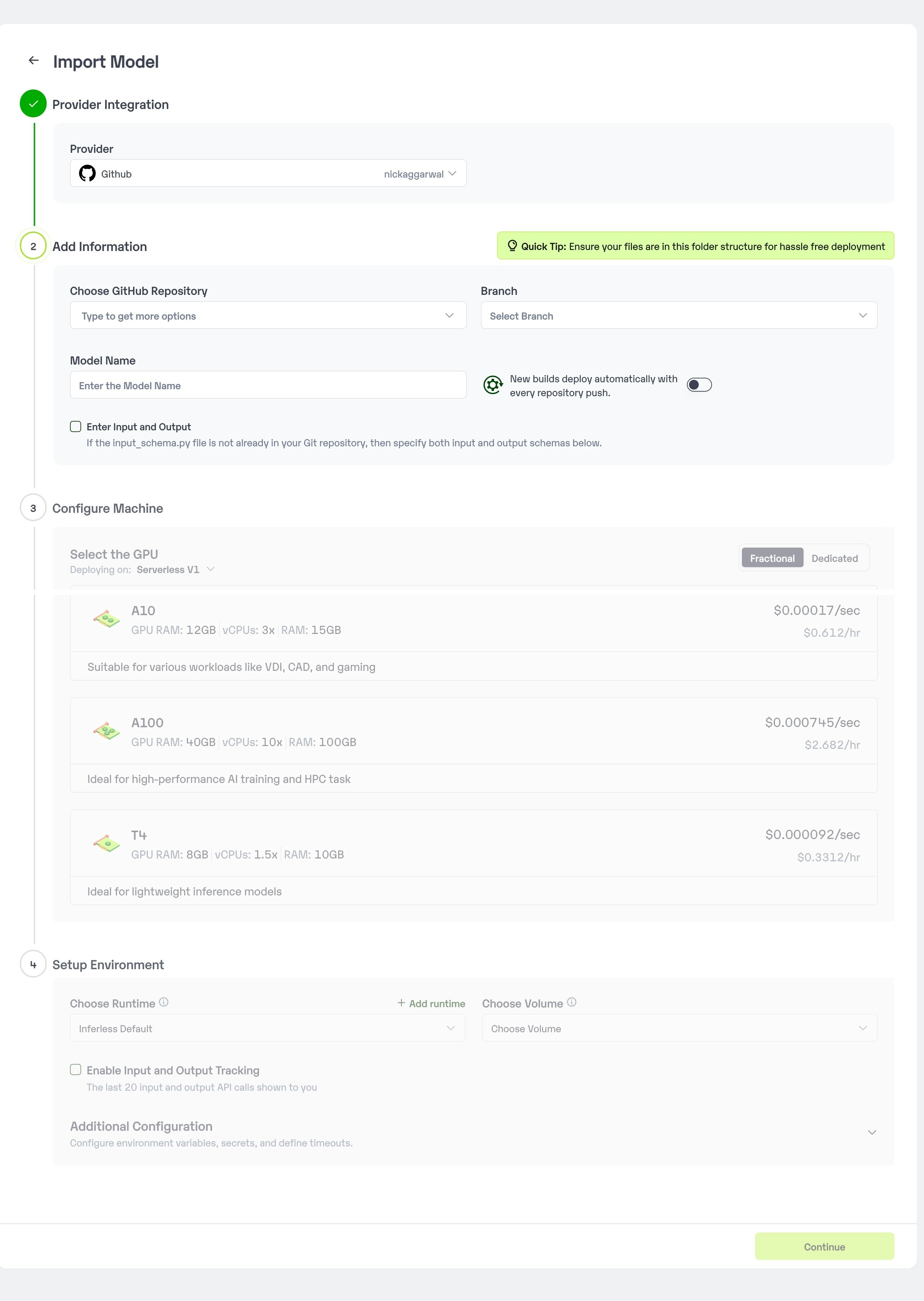
Navigate to your desired workspace in Inferless and Click on `Add a custom model` button that you see on the top right. An import wizard will open up.
### Step 2: Follow the UI to complete the model Import
* Select the GitHub/GitLab Integration option to connect your source code repository with the deployment environment.
* Navigate to the specific GitHub repository that contains your model's code. Here, you will need to identify and enter the name of the model you wish to import.
* Choose the appropriate type of machine that suits your model's requirements. Additionally, specify the minimum and maximum number of replicas to define the scalability range for deploying your model.
* Optionally, you have the option to enable automatic build and deployment. This feature triggers a new deployment automatically whenever there is a new code push to your repository.
* If your model requires additional software packages, configure the Custom Runtime settings by including necessary pip or apt packages. Also, set up environment variables such as Inference Timeout, Container Concurrency, and Scale Down Timeout to tailor the runtime environment according to your needs.
* Wait for the validation process to complete, ensuring that all settings are correct and functional. Once validation is successful, click on the "Import" button to finalize the import of your model.
 ### Step 3: Wait for the model build to complete usually takes \~5-10 minutes
### Step 4: Use the APIs to call the model
Once the model is in 'Active' status you can click on the 'API' page to call the model
### Here is the Demo:
### Step 3: Wait for the model build to complete usually takes \~5-10 minutes
### Step 4: Use the APIs to call the model
Once the model is in 'Active' status you can click on the 'API' page to call the model
### Here is the Demo:
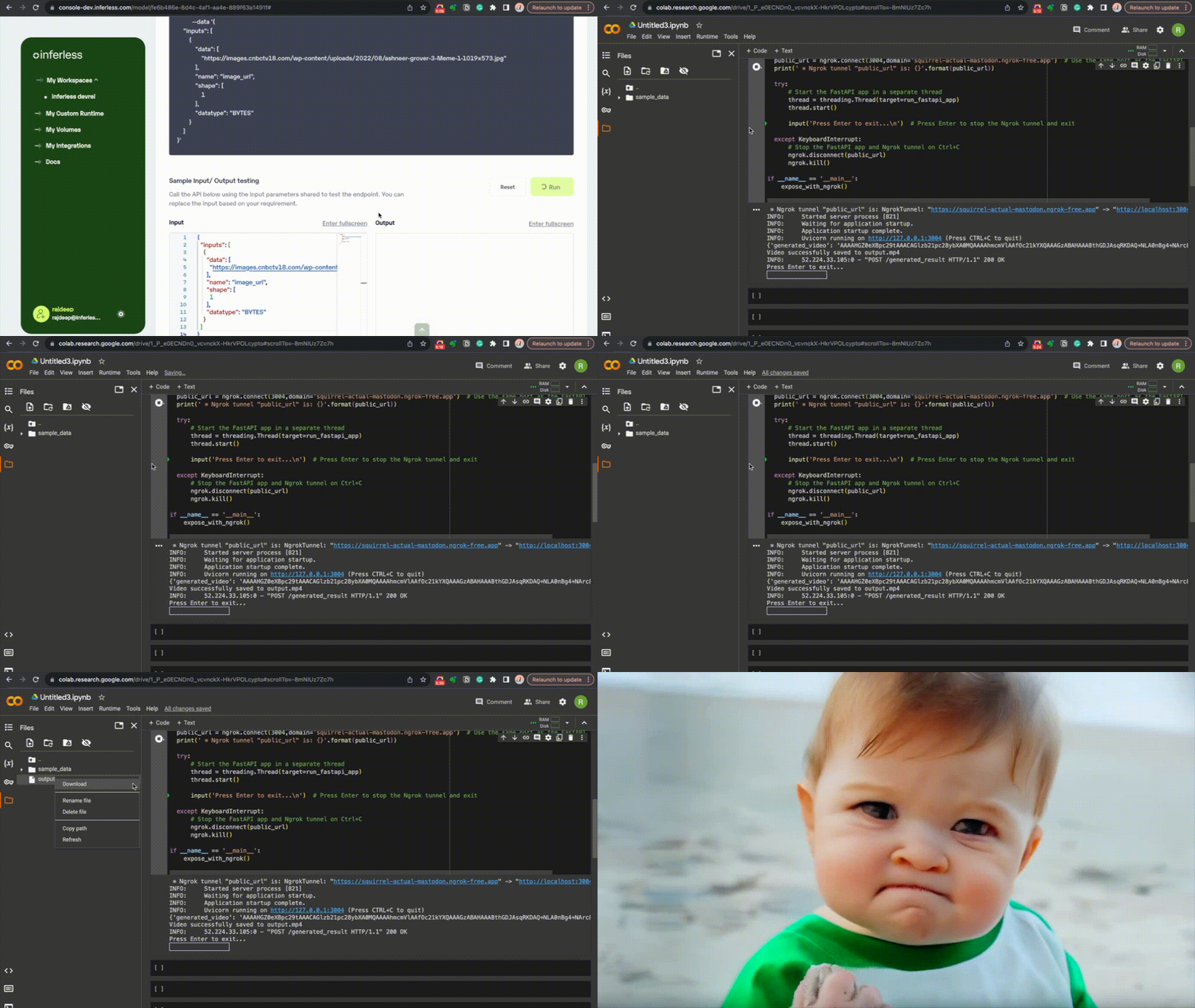 *Note: This demo GIF shows the deployment of the Stable Video Diffusion model using webhook.*
## Method B: Deploying the model on Inferless CLI
Inferless allows you to deploy your model using Inferless-CLI. Follow the steps to deploy using Inferless CLI.
### Clone the repository of the model
Let's begin by cloning the model repository:
```bash theme={null}
git clone https://github.com/inferless/stable-video-diffusion.git
```
### Deploy the Model
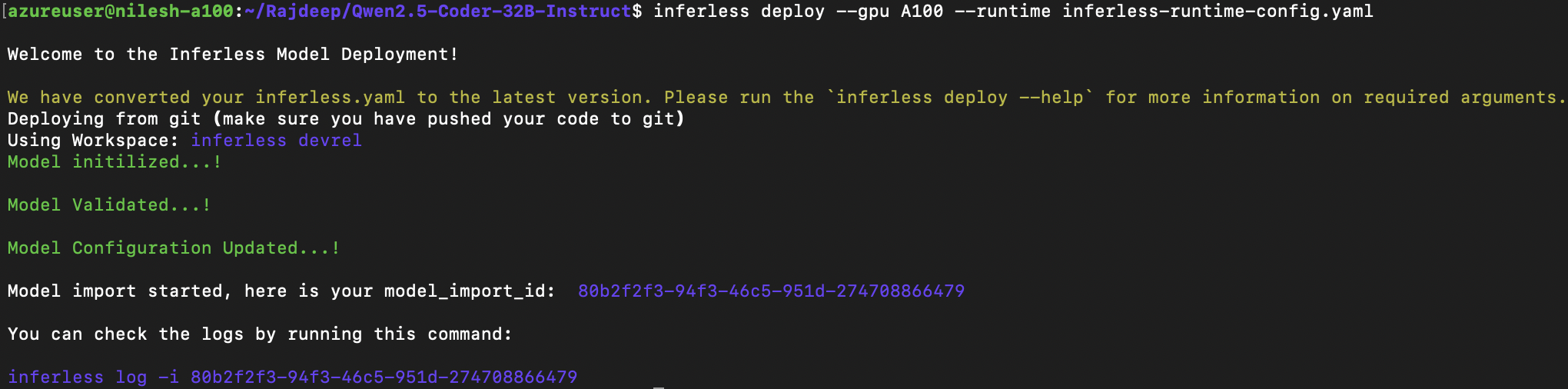
To deploy the model using Inferless CLI, execute the following command:
```bash theme={null}
inferless deploy --gpu A100 --runtime inferless-runtime-config.yaml
```
**Explanation of the Command:**
* `--gpu A100`: Specifies the GPU type for deployment. Available options include `A10`, `A100`, and `T4`.
* `--runtime inferless-runtime-config.yaml`: Defines the runtime configuration file. If not specified, the default Inferless runtime is used.
*Note: This demo GIF shows the deployment of the Stable Video Diffusion model using webhook.*
## Method B: Deploying the model on Inferless CLI
Inferless allows you to deploy your model using Inferless-CLI. Follow the steps to deploy using Inferless CLI.
### Clone the repository of the model
Let's begin by cloning the model repository:
```bash theme={null}
git clone https://github.com/inferless/stable-video-diffusion.git
```
### Deploy the Model
To deploy the model using Inferless CLI, execute the following command:
```bash theme={null}
inferless deploy --gpu A100 --runtime inferless-runtime-config.yaml
```
**Explanation of the Command:**
* `--gpu A100`: Specifies the GPU type for deployment. Available options include `A10`, `A100`, and `T4`.
* `--runtime inferless-runtime-config.yaml`: Defines the runtime configuration file. If not specified, the default Inferless runtime is used.